Nervecentre V8.1 Help for Users
What is EPMA?
EPMA stands for Electronic Prescribing and Medicines Administration.
You can use Nervecentre EPMA to prescribe and administer medications with a high degree of patient safety, efficiency, and transparency across mobile and desktop. It covers arrival and TTO To Take Out. Often used to describe the medicines added to the discharge letter, and, informally, the letter itself. medications, as well as medications prescribed during the current episode.
EPMA on a mobile is designed to work with EPMA on a desktop. EPMA on a desktop gives you a more complete view and is better for making clinical decisions. EPMA on a mobile is better for rapid bedside care.
About EPMA on a mobile
 What can I do on a mobile?
Depending on your permissions, you can:
-
Prescribe and administer medications
-
Add arrival medications
-
View and edit TTO medications
Viewing Medications
-
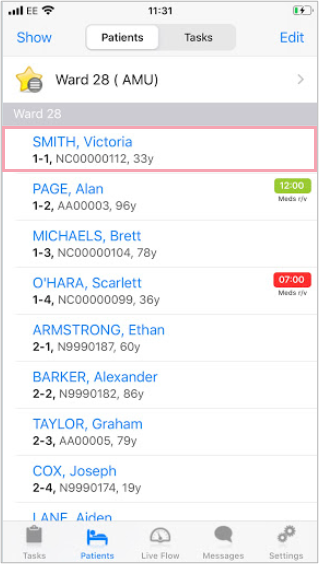
From your patient list, select a patient.
-
Select any option under Medications.
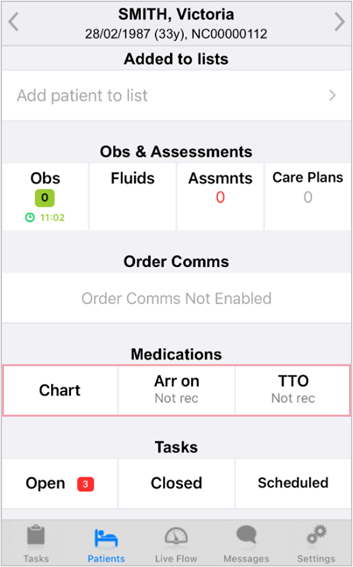
Overview of Medications
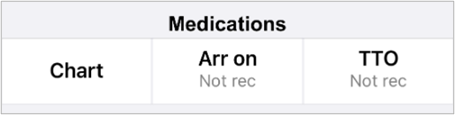
EPMA is split into three sections on a mobile: Chart, Arr on, and TTO.
|
Chart |
Chart shows you the MAR Medicines Administration Record. Also known as drug chart. A list of all medication prescribed and administered (given).. You can view, add, modify, pause, and stop prescriptions. You can administer medications, filter the MAR by medication type, and view prescription administration history. You can add a pharmacy supply and order medications. Pharmacists can approve prescriptions. |
|
Arr on |
You can add, modify, and delete arrival medications. |
|
TTO |
You can view, modify, and delete TTO prescriptions. |
About EPMA on a desktop
Opening Meds from Patient Detail
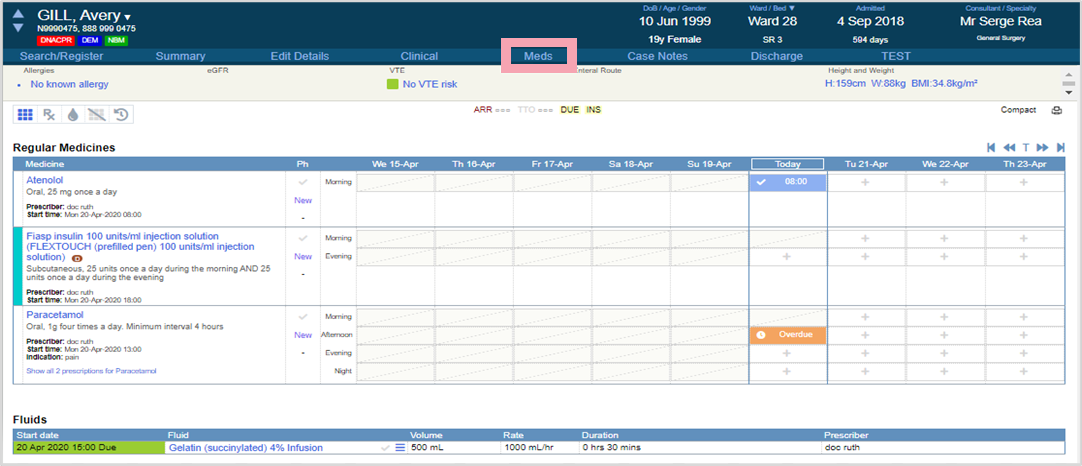
From Inpatients > Patient List > double-click on a patient's name > Patient Detail, select Meds.
The default view shows the MAR Medicines Administration Record. Also known as drug chart. A list of all medication prescribed and administered (given)..
Opening Meds from Clinical > Current Medications
-
From Inpatients > Patient List > double-click on a patient's name > Patient Detail, select Clinical.
-
Find Current Medications.
Current Medications includes arrival medications, TTO progress indicators, and an overview of current medications. You can’t administer medications from here.
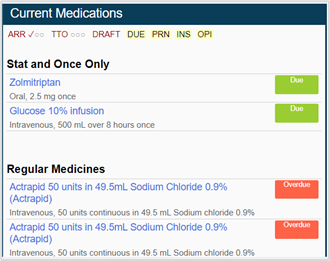
-
Select a medication to open the events log.
Overview of Meds
From Inpatients > Patient List > double-click on a patient's name > Patient Detail, select Meds.
When you first select Meds from Patient Detail, you see the MAR Medicines Administration Record. Also known as drug chart. A list of all medication prescribed and administered (given)..
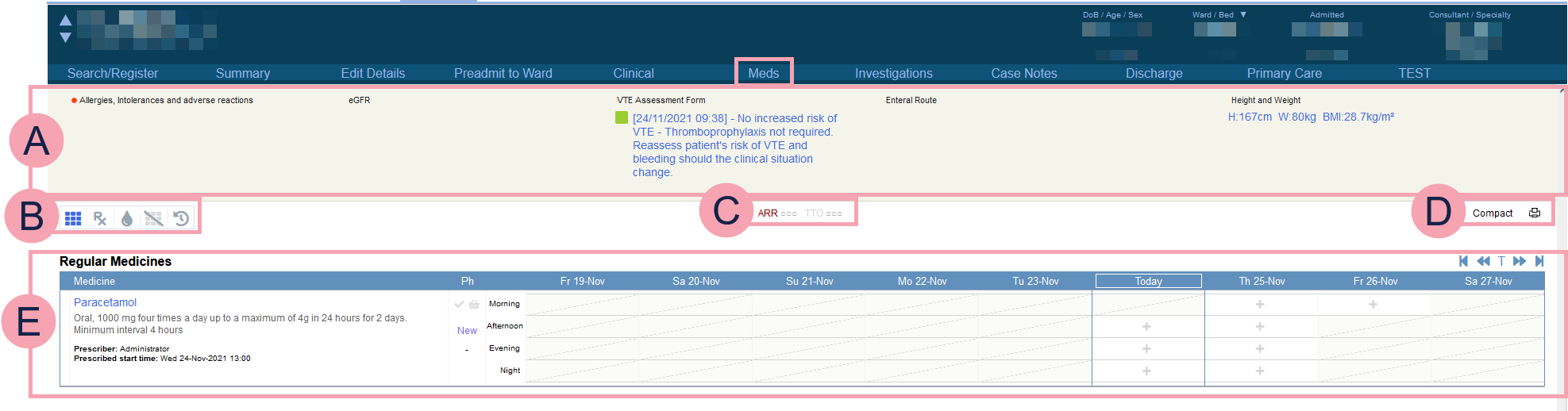
|
|
The top banner appears at the top of all pages within Meds. Select fields to enter information. Mandatory fields show . You must complete mandatory fields or override mandatory fields with a reason before you can prescribe any medications. Overriding is fully audited. Only override mandatory fields in an emergency. |
||||||||||||||||
|
|
|
||||||||||||||||
|
|
Select an option to filter the MAR. ARR: view arrived on medications. TTO: view to take out medications. : view due, overdue, and missed medications and fluids. To clear the filter view, select . |
||||||||||||||||
|
|
Compact and Detailed, toggle between the short view and the full view of the MAR. Select |
||||||||||||||||
|
|
The MAR. Use the transport controls to view previous or future days, or select T to centre the view on today. |





 to print the MAR.
 Overview of Prescribe
From Inpatients > Patient List > double-click on a patient's name > Patient Detail, select Meds.
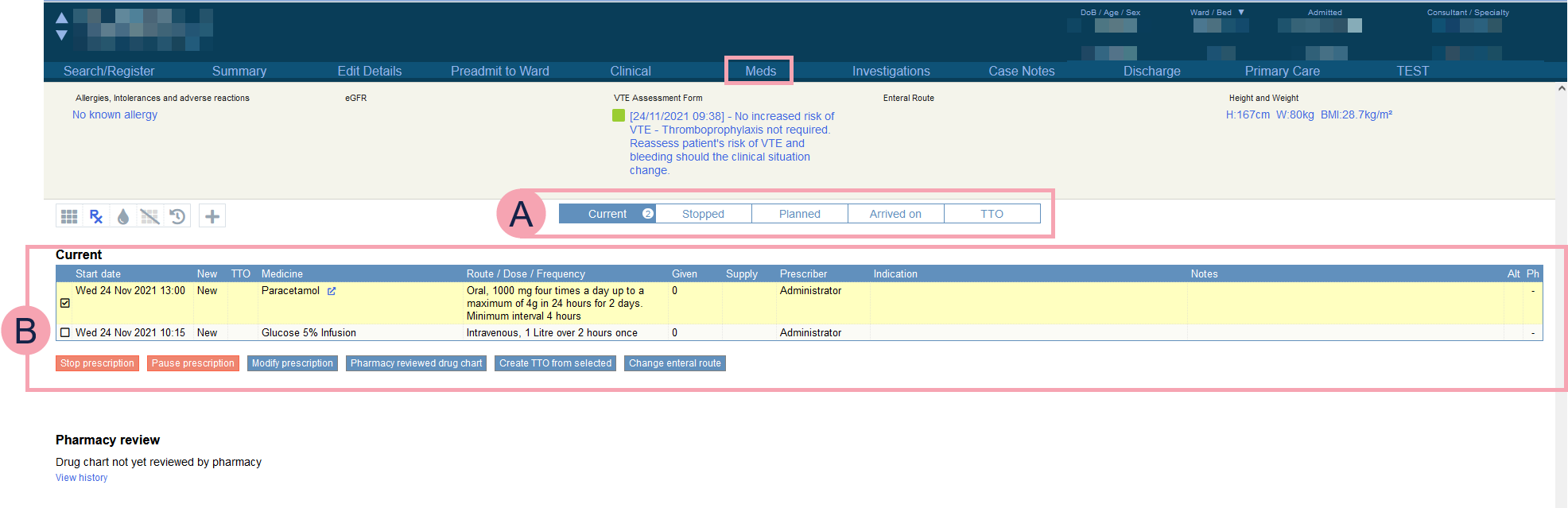
To open Prescribe, select . This shows a list of current prescriptions.
|
|
Select which prescriptions to view. Choose from:
|
||||||||||||
|
|
Select a prescription to access all the buttons below the list.
|
Did you find this article helpful? Yes No
Sorry about that. Our help is a work in progress and we welcome any feedback.
Why wasn't this helpful? Please select one reason:
Thanks for your feedback.
Great!
Thanks for taking the time to give us some feedback.