Nervecentre V8.1 Help for Users
You can change prescriptions by adding notes, adjusting or omitting a dose, and modifying the frequency. On a desktop, you can also change the enteral route.
Changing prescriptions on a mobile
 Adding a note to a prescription
-
From your patient list, select a patient.
-
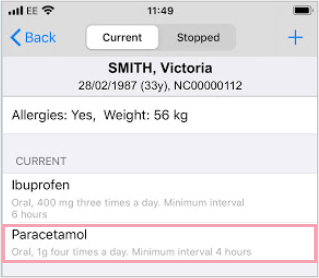
From Chart > Current, select a prescription.
-
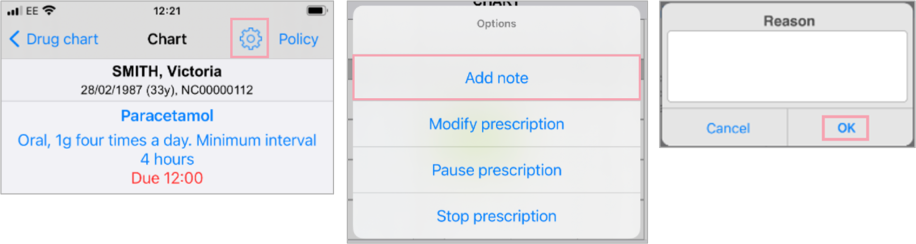
To add a note:
-
Select .
-
Select Add note.
-
Enter a note.
-
Select OK.
-
Modifying a prescription
-
From your patient list, select a patient.
-
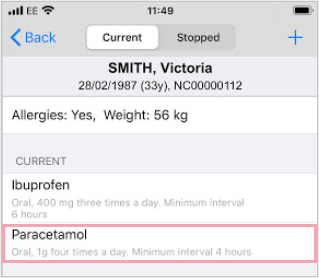
From Chart > Current, select a prescription.
-
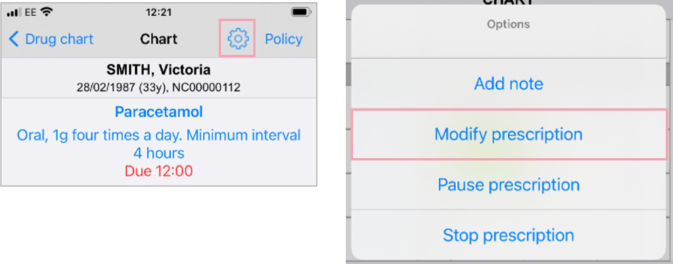
Select > Modify prescription.
-
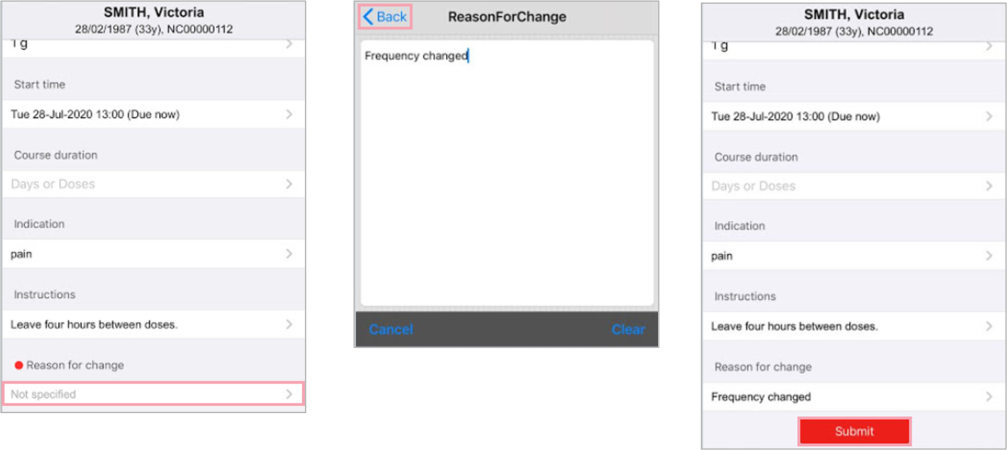
Select a field to change.
In this example, Frequency is changed.

-
To add a reason:
-
Select Reason for change.
-
Enter the reason.
-
Select Back > Submit.
-
Changing prescriptions on a desktop
Changing prescriptions
-
From Inpatients > Patient List > double-click on a patient's name > Patient Detail, select Meds.
-
View current prescriptions or the MAR.
-
To view current prescriptions, select > Current.
-
To view the MAR, select .
-
-
Select the name of a prescription.
-
Select Modify prescription.
-
Select an option.
-
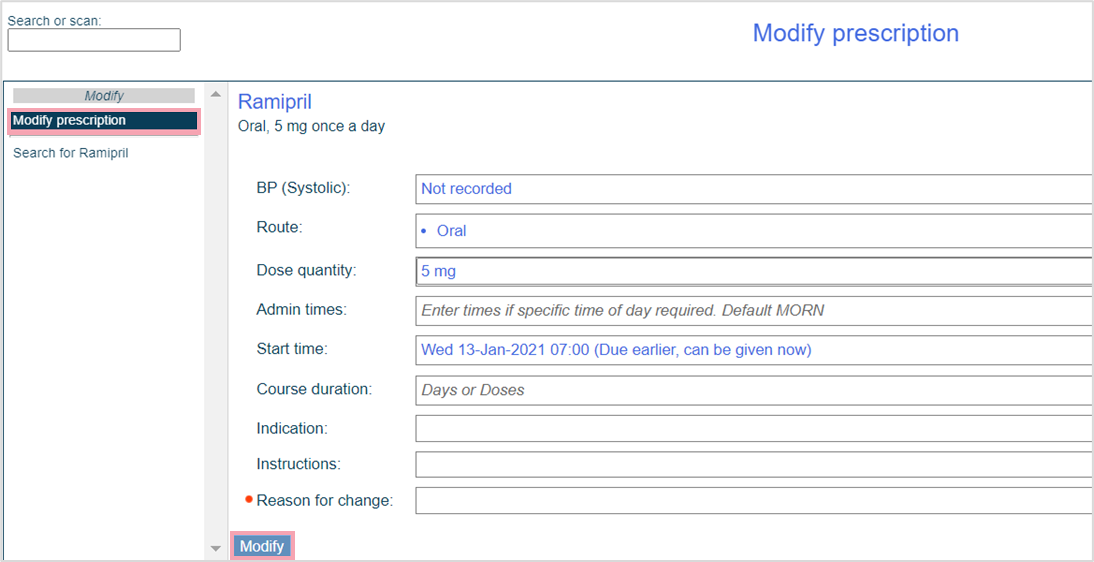
To modify the prescription, select Modify prescription.
-
If modifying a non-dose sentence, or to make more significant changes than the dose sentence allows, select search for the drug and complete dose sentence questions.
-
-
Modify the prescription. Complete mandatory fields, including a Reason for change.
-
Select Modify.
If a user who is not the original prescriber modifies the prescription, the prescriber name is updated.
Overview of current medications
-
From Inpatients > Patient List > double-click on a patient's name > Patient Detail, select Meds.
-
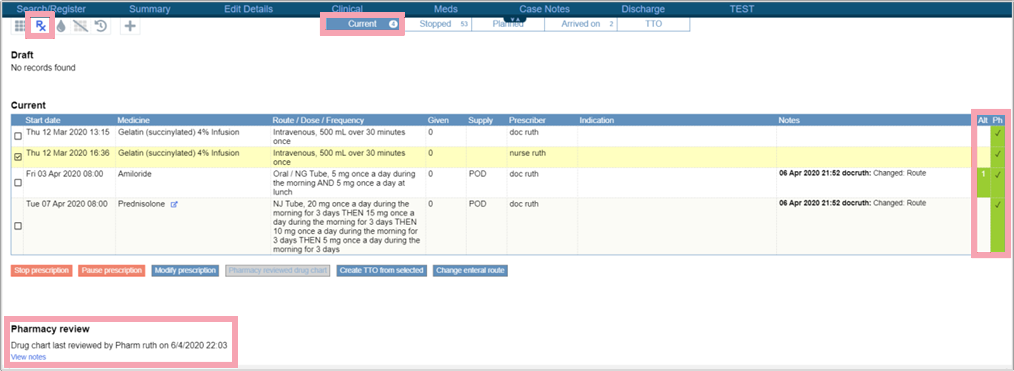
Select > Current.
Current medications appear below Draft.
-
If the MAR Medicines Administration Record. Also known as drug chart. A list of all medication prescribed and administered (given)., has been reviewed by pharmacy, pharmacy details appear below Current.
Select View notes for more detail.
-
The alert level is shown in the Alt column.
Double-click an alert to see more detail.
-
If you have pharmacy permissions, mark medications as checked or not checked in the Ph column.
Double-click a medication in the Ph column and select Approved or Unapproved.
-
Mouseover the green tick to see details about who approved the prescription, and when.
-
Double-click a medication in the Notes column to add a free text comment.
-
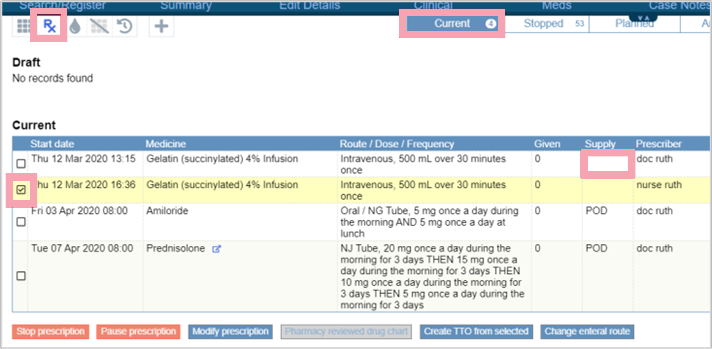
Select checkboxes to select one or more prescriptions.
-
Double-click a medication in Supply to select the supply location.
The list of supply options varies based on your organisation.
-
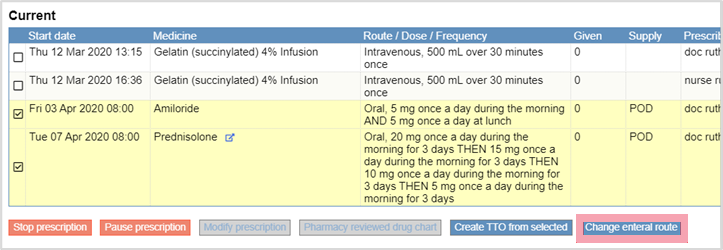
When one or more prescriptions are selected your options depend on your permissions, but might include: Stop prescription, Pause prescription, Modify prescription, Pharmacy reviewed drug chart, Create TTO from selected, and Change enteral route.
Setting a daily dose for a prescription
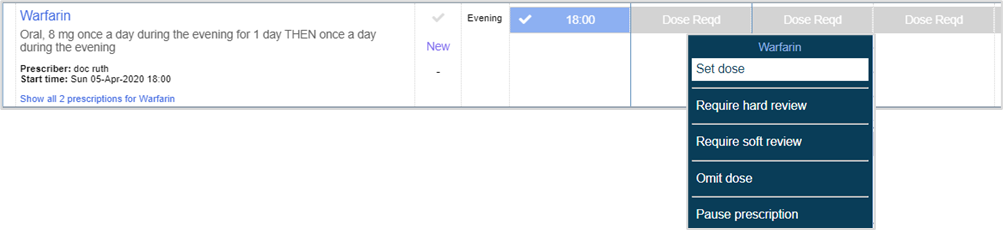
Some medications, for example, warfarin, can require a prescriber to set the dose quantity every day, depending on test results. You can’t administer the medication until the dose quantity is set.
The first day’s dose is entered during the prescribing process.
-
From Inpatients > Patient List > double-click on a patient's name > Patient Detail, select Meds.
-
On the MAR, the first dose is set and can be administered as expected.
For subsequent doses, select the dose from the MAR and then select Set dose.
-
Enter a new dose quantity.
-
Mouse over the dosed cell to see prescriber details.
Adding instructions without updating the prescriber name
To add instructions without updating the prescriber name:
-
From Inpatients > Patient List > double-click on a patient's name > Patient Detail, select Meds.
-
Select , select the medication, and then select Instructions.
-
Enter instructions and Save.
Changing the enteral route
-
From Inpatients > Patient List > double-click on a patient's name > Patient Detail, select Meds.
-
Select > Current, and select medications.
-
Select Change enteral route.
-
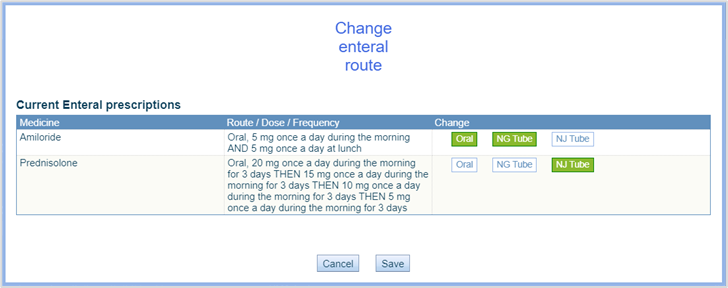
Select route options.
Selected routes are green.
-
Select Save.
Did you find this article helpful? Yes No
Sorry about that. Our help is a work in progress and we welcome any feedback.
Why wasn't this helpful? Please select one reason:
Thanks for your feedback.
Great!
Thanks for taking the time to give us some feedback.