Nervecentre V8.1 Help for Users
Viewing and managing prescriptions sent to community pharmacies
The Electronic Prescription Service (EPS) is only available in England.
Clinicians can send prescriptions by EPS to a dispensary. This dispensary can be a community pharmacy, or an appliance contractor. The dispensary gives the medication or device to the patient.
You can view and manage prescriptions sent by EPS from Back office > E-Prescribing Service, or from Patient Detail > Patient admin > View EPS.
Viewing and managing prescriptions sent to community pharmacies on a mobile
You can't do this on a mobile.
Viewing and managing prescriptions sent to community pharmacies on a desktop
 Overview of E-Prescribing Service
From Back office > E-Prescribing Service, you can view all orders sent by EPS.
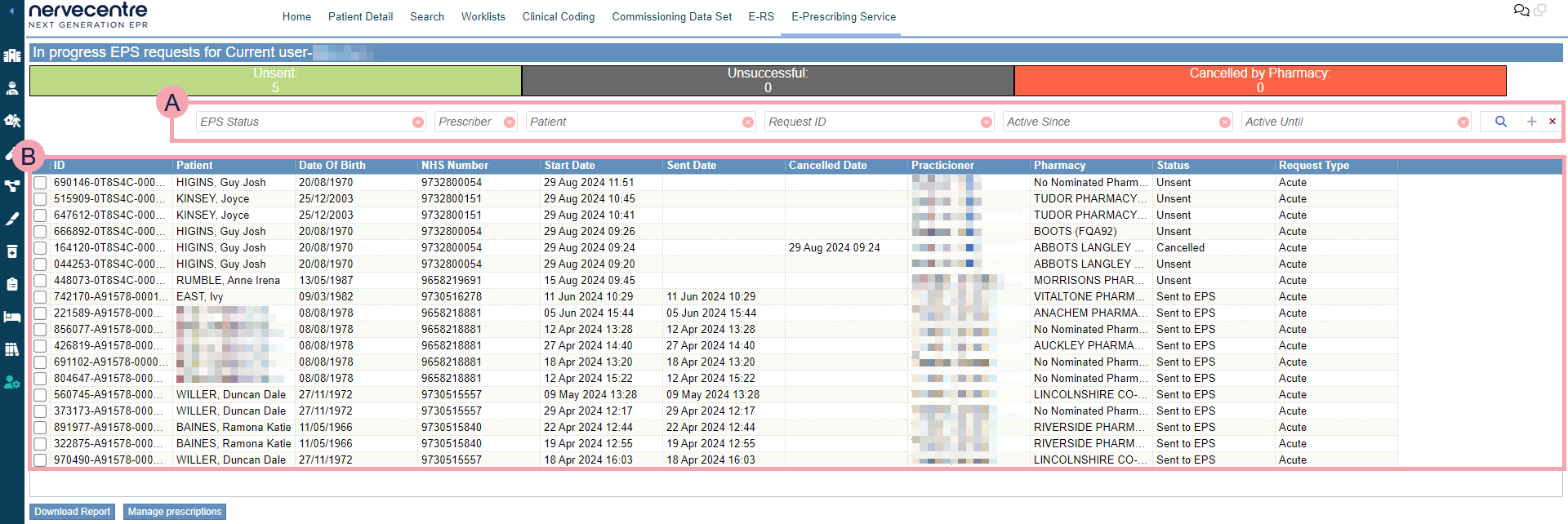
|
Unsent |
Select to view orders not sent to a dispensary yet. |
|
Unsuccessful |
Select to view orders where delivery was unsuccessful. |
|
Cancelled by Pharmacy |
Select to view orders cancelled by a pharmacy or appliance contractor. |
|
|
Search criteria. Select search criteria to view specific orders. |
|
|
Shows a list of orders returned by your search. |
|
Download Report |
Export the current search results to an .xlsx file. |
| Manage prescriptions |
Select to view details about the order, and manage prescriptions in the order. Read more about managing prescriptions in orders sent by EPS |

 Overview of Patient admin > View EPS
From Patient Detail > Patient admin > View EPS, you can view orders sent by EPS for that patient.
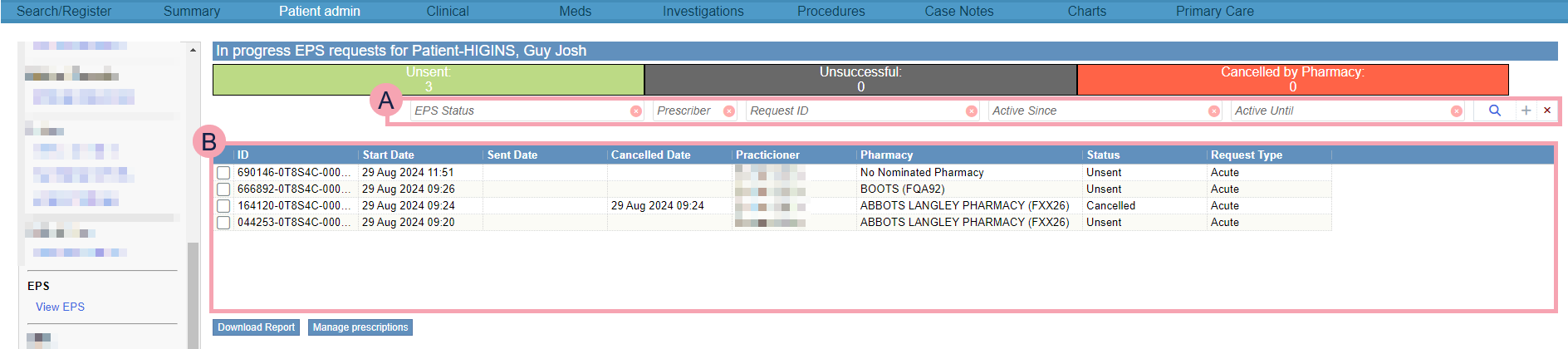
|
Unsent |
Select to view orders not sent to a dispensary yet. |
|
Unsuccessful |
Select to view orders where delivery was unsuccessful. |
|
Cancelled by Pharmacy |
Select to view orders cancelled by a pharmacy or appliance contractor. |
|
|
Search criteria. Select search criteria to view specific orders. |
|
|
Shows a list of orders returned by your search. |
|
Download Report |
Export the current search results to an .xlsx file. |
| Manage prescriptions |
Select to view details about the order, and manage prescriptions in the order. Read more about managing prescriptions in orders sent by EPS |
Viewing orders sent by EPS
-
View a list of orders sent by EPS.
-
To view all orders sent by EPS, from Back office, select E-Prescribing Service.
-
To view a list of orders sent by EPS for a specific patient:
-
Open the patient's record.
-
From Inpatients, select Patient List > double-click on a patient's name > Patient Detail.
-
From Outpatients, select Clinic List > double-click on a patient's name > Patient Detail.
-
-
From Patient admin, select View EPS.
-
-
-
Filter the list of orders.
To view orders:
-
Not sent to a dispensary yet, select Unsent.
-
Where delivery was unsuccessful, select Unsuccessful.
-
Cancelled by the dispensary, select Cancelled by Pharmacy.
-
-
Search for specific orders using the search criteria shown in the table below.
To add or remove a search criteria, select +.
EPS Status
Select a status to search for orders with this status.
For example, cancelled by hospital, or rejected by EPS.
Prescriber
Select a prescriber to search for orders containing prescriptions they prescribed.
Patient
Select to search for a patient.
Request ID
Enter an ID for the order.
Active Since
Select a date to search for orders started on that date.
Active Until
Select a date to search for orders active until that date.
-
Select .
Managing prescriptions in orders sent by EPS
-
View a list of orders sent by EPS.
-
To view all orders sent by EPS, from Back office, select E-Prescribing Service.
-
To view a list of orders sent by EPS for a specific patient:
-
Open the patient's record.
-
From Inpatients, select Patient List > double-click on a patient's name > Patient Detail.
-
From Outpatients, select Clinic List > double-click on a patient's name > Patient Detail.
-
-
From Patient admin, select View EPS.
-
-
-
Select an order.
-
Select Manage prescriptions.
-
Make any changes, or print a token.
-
To change the dispensary an order is sent to, select Change pharmacy.
-
To move a prescription to a new order, select a prescription, then select Move Item to New Order.
-
To cancel a prescription in an order, select a prescription, then select Cancel Item.
-
To cancel all prescriptions in an order, select Cancel all request items.
-
To print a token that you can give to the patient, select Print token.
-
Cancelling all prescriptions in an order
-
View a list of orders sent by EPS.
-
To view all orders sent by EPS, from Back office, select E-Prescribing Service.
-
To view a list of orders sent by EPS for a specific patient:
-
Open the patient's record.
-
From Inpatients, select Patient List > double-click on a patient's name > Patient Detail.
-
From Outpatients, select Clinic List > double-click on a patient's name > Patient Detail.
-
-
From Patient admin, select View EPS.
-
-
-
Select an order.
-
Select Manage prescriptions.
-
Select Cancel all request items.
-
Select a reason for cancelling the items.
For example, prescribing error.
-
Enter any notes.
-
Select Yes - Cancel request.
A cancellation message is sent to the dispensary. If the dispensary hasn't dispensed the medication, the dispensary can send a message back to Nervecentre to cancel order.
To acknowledge the cancellation and cancel the order:
-
Find the order sent to EPS.
-
From Outpatients > Clinic List > double-click on a patient's name > Patient Detail > Meds, select the prescription with the status 'EPS cancelled' and select Cancel Dispense.
-
From Back office > E-Prescribing Service, double-click on the order with the status 'Cancelled remote'.
-
From Patient Detail > Patient admin > View EPS, double-click on the order with the status 'Cancelled remote'.
-
-
Select Acknowledge Remote Cancel.
From the outpatient prescription list, the prescription's status changes to 'Not dispensed'. You can then choose to dispense the prescription by another method.
-
Did you find this article helpful? Yes No
Sorry about that. Our help is a work in progress and we welcome any feedback.
Why wasn't this helpful? Please select one reason:
Thanks for your feedback.
Great!
Thanks for taking the time to give us some feedback.