Nervecentre V8.1 Help for Users
You can view additional information about arrival medications and dispensed orders in Pharmacy and Case Notes. This is to assist pharmacy staff with dispensing discharge medications.
Pharmacy TTO actions on a mobile
You can't do this on a mobile.
Pharmacy TTO actions on a desktop
 Overview of TTO list
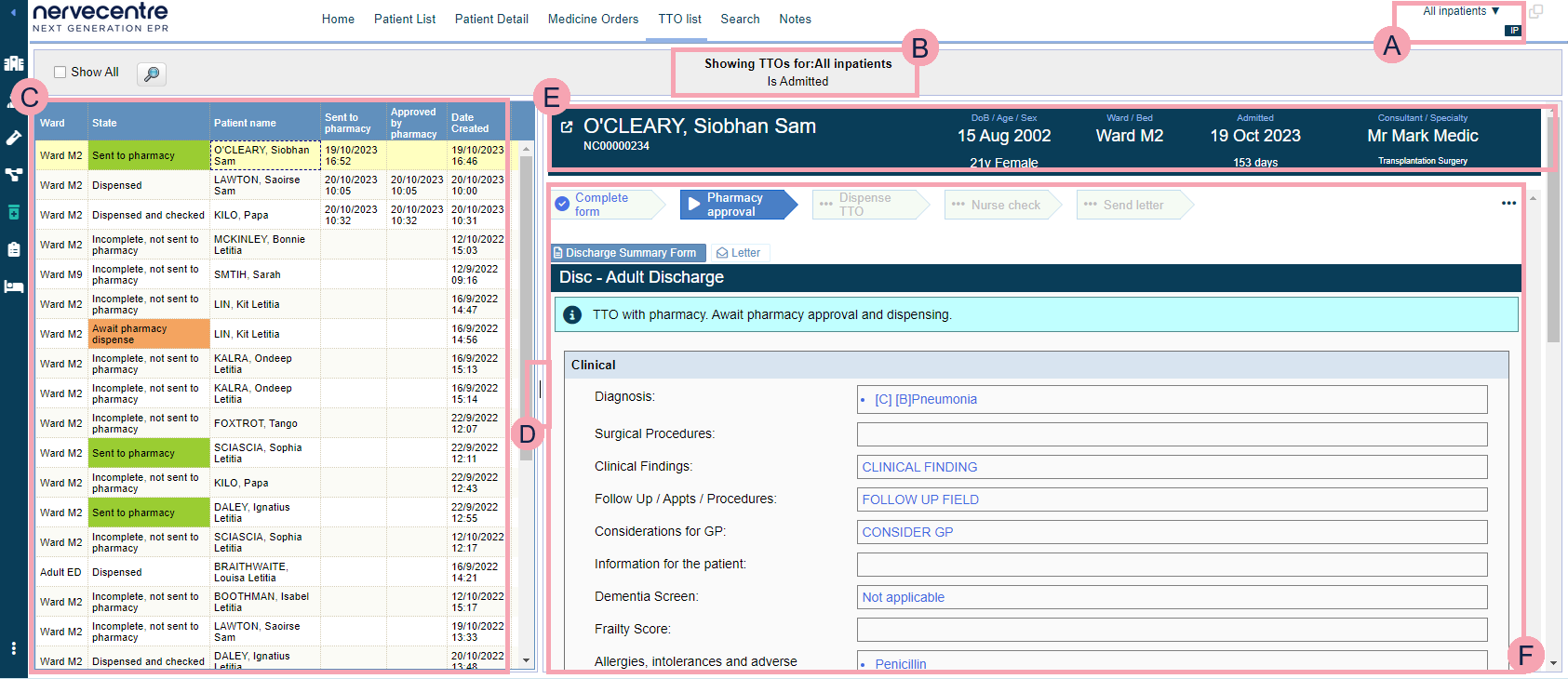
From Pharmacy > TTO list, you can view a list of all TTO medications.
|
|
You can view the medicine orders for a selected list of patients. Select to choose a list of patients. When you mouseover the name of the current patient list, the name of the previous patient list you viewed shows below. Select the name of the previous patient list to view medicine orders for patients in that list. |
|
|
Shows your selected patient list. |
|
Show All |
Select Show All to view all medicine orders. |
|
|
Select to search for a specific patient. |
|
|
Shows a table of TTOs for the selected patient list. To sort TTOs, select a column heading. TTO status is shown in the State column. TTO statuses are colour coded with a RAG rating A red/amber/green ‘traffic light’ rating system. It can denote progress with various milestones. To see TTOs for a patient, select any cell in the table. The patient’s medical discharge summary appears on the right of the screen. TTOs are in the medical discharge summary. |
|
|
The default view only shows a limited amount of the menu. Drag the partition to show all the fields. |
|
|
Shows the patient’s details. Select to view the MAR Medicines Administration Record. Also known as drug chart. A list of all medication prescribed and administered (given). of the patient. |
|
|
Shows the patient's medical discharge summary. Read more about viewing information for TTO medications Read more about viewing the change history of a case note from Pharmacy |


 Viewing information for TTO medications
-
To access pharmacy TTO pages, select Pharmacy.
-
Make sure you are viewing the inpatient pharmacy.
Depending on your permissions, IP appears in the top right-hand corner if you are viewing the inpatient pharmacy, OP if you are viewing the outpatient pharmacy.
If OP is visible, select OP. The text will change to IP.
-
Select TTO list.
- Select a patient from the list on the left.
- Select anywhere in the TTO Inpatient table.
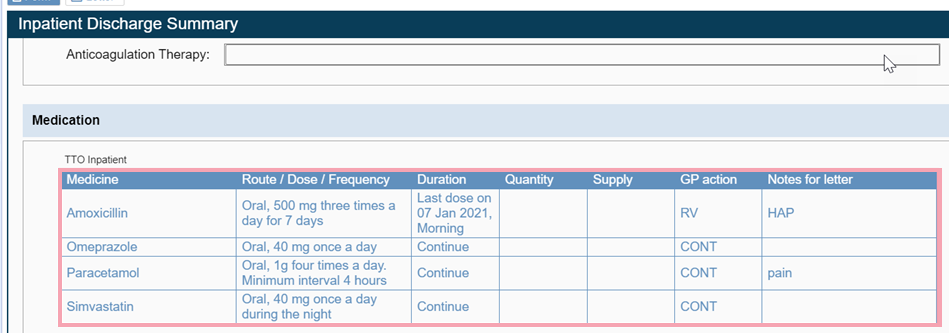
A TTO table appears with information useful for dispensing TTOs.
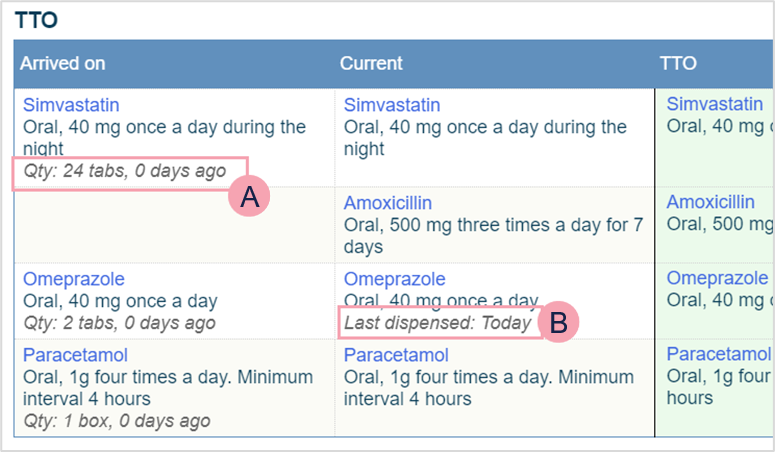

Recorded quantity of arrival medications, and when it was recorded.

When an ordered medication was last dispensed.
Viewing the change history of a case note from Pharmacy
-
To view case note history in the pharmacy pages, select Pharmacy.
-
Make sure you are viewing the inpatient pharmacy.
Depending on your permissions, IP appears in the top right-hand corner if you are viewing the inpatient pharmacy, OP if you are viewing the outpatient pharmacy.
If OP is visible, select OP. The text will change to IP.
-
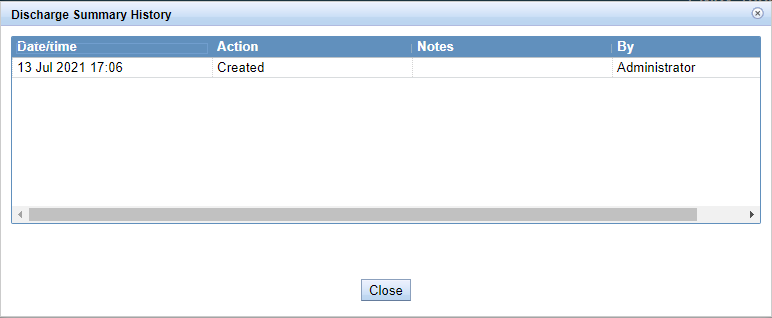
Select TTO list > select > Show history.
TTOs in the medical discharge summary
-
To access pharmacy TTO pages, select Pharmacy.
-
Make sure you are viewing the inpatient pharmacy.
Depending on your permissions, IP appears in the top right-hand corner if you are viewing the inpatient pharmacy, OP if you are viewing the outpatient pharmacy.
If OP is visible, select OP. The text will change to IP.
-
Select TTO list.
-
From the list on the left, select a patient.
The patient's discharge summary form appears on the right.
-
To view current medications and TTOs in the discharge summary form, select anywhere in TTO Inpatient.
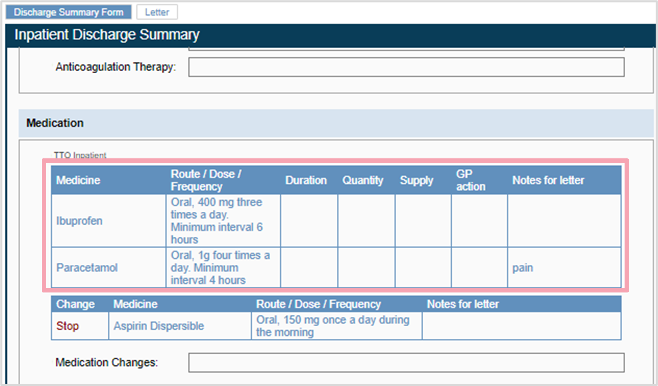
Discontinued, stopped, and paused arrival medications appear in the table below TTO.
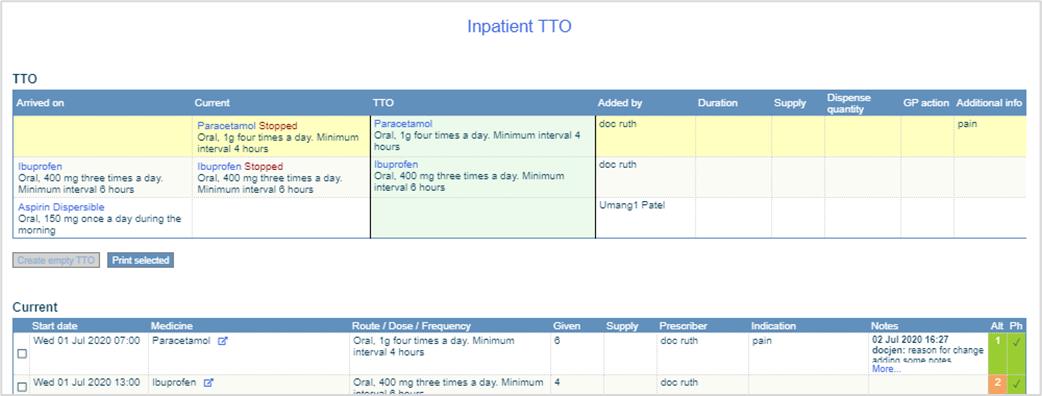
-
From Inpatient TTO, double-click in a cell to edit data, including supply or dispense quantity.
-
Select anywhere outside Inpatient TTO to return to the previous screen.
-
To progress the TTO, select an option from the bottom of the discharge summary form.
Read more about workflow buttons
The options you see depends on your role and your organisation.
Did you find this article helpful? Yes No
Sorry about that. Our help is a work in progress and we welcome any feedback.
Why wasn't this helpful? Please select one reason:
Thanks for your feedback.
Great!
Thanks for taking the time to give us some feedback.