Nervecentre V8.1 Help for Users
Tracking case note volumes
Tracking paper case notes, Tracking physical case notes
You can record the location of multiple case note volumes.
For example, you might be taking 50 case note volumes from a clinic back to the library. When you get to the library, you need to record the location of those case note volumes. From Medical Records > Tracking, you can scan those 50 case note volumes and update their location.
Tracking case note volumes on a mobile
You can't do this on a mobile.
Tracking case note volumes on a desktop
 Overview of Tracking
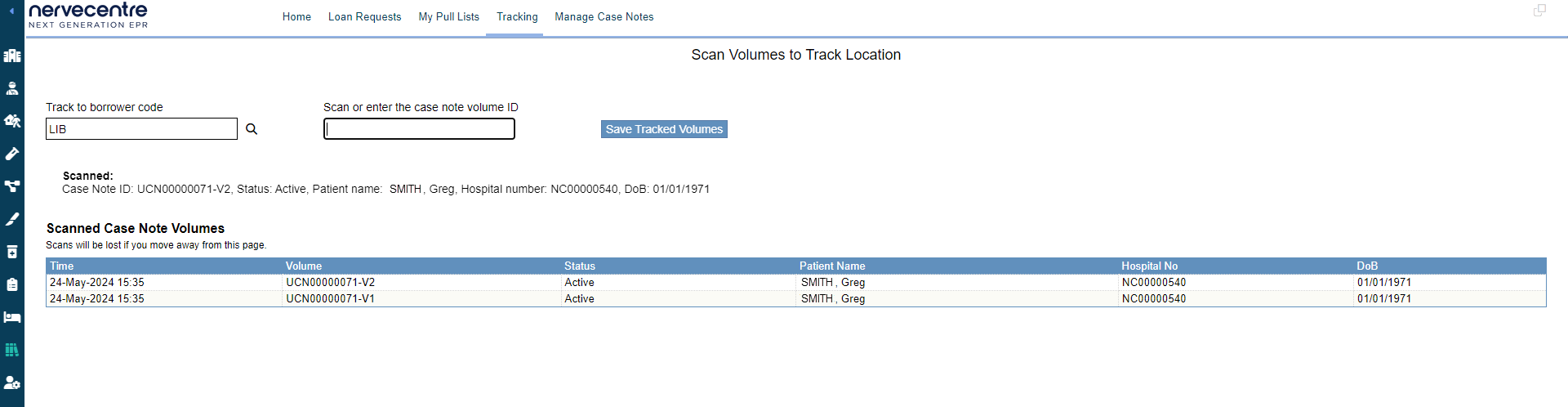
From Medical Records > Tracking, you can record the location of multiple case note volumes.
|
Track to borrower code |
By default, the last selected borrower code is shown here. Select this and choose a borrower code.
|
|
Scan or enter the case note volume ID |
Select to track a case note volume. You can:
|
|
Save Tracked Volumes |
Select this to record the location of the case note volumes you have tracked. |
|
Scanned |
Shows details about the latest case note volume you tracked. |
|
Scanned Case Note Volumes |
Shows a list of case note volumes you have tracked. |
|
Time |
Shows the date and time you tracked a case note volume. |
|
Volume |
Shows the ID of the case note volume. |
|
Status |
Shows the status of the case note volume. |
|
Patient name |
Shows the patient's name. |
|
Hospital No |
Shows the patient's hospital number. |
|
DoB |
Shows the patient's date of birth. |
Recording the location of multiple case note volumes
-
From Medical Records > Tracking, select Track to borrower code.
-
Choose a borrower code.
Each location has a borrower code.
-
Enter a borrower code.
-
To search for a borrower code, select > Search and enter a borrower code.
-
To use the current borrower code for a case note volume, select > Search and scan the barcode on a case note volume.
-
To find the borrower code for a specific location, select > Browse by Location and find the location.
-
-
Select Scan or enter the case note volume ID.
-
Track each case note volume to the location.
To track a case note volume:
-
Enter the ID of a case note volume and press Enter.
Or
-
Scan the barcode on a case note volume.
Tracked case note volumes appear under Scanned Case Note Volumes.
-
-
To record the location of the case note volumes you have tracked, select Save Tracked Volumes.
Nervecentre updates the location of each case note volume to match the location of the borrower code.
-
Enter a note.
-
Select Save.
Did you find this article helpful? Yes No
Sorry about that. Our help is a work in progress and we welcome any feedback.
Why wasn't this helpful? Please select one reason:
Thanks for your feedback.
Great!
Thanks for taking the time to give us some feedback.