Nervecentre V8.1 Help for Users
Overview of Outpatients
Outpatients includes all aspects of clinical care for outpatients.
 Overview of Outpatients

|
Home |
Your home dashboard. You can customise your home dashboard to show your choice of information. Your home dashboard is available across Nervecentre. |
|
Clinic List |
View a list of patients in a clinic on a selected day. |
|
Patient Detail |
View and edit demographic and clinical information about a patient. |
|
All Investigations |
View investigations for all patients, or a selected clinic. |
|
Calendar |
View appointments at a clinic on a calendar. |
|
Worklists |
View your worklist. Your worklist shows you lists of items returned by flow metrics. For example, you might have a worklist that lists all the things you need to do. |
|
Manage |
View and edit information about your clinic. You can:
|
Clinic List
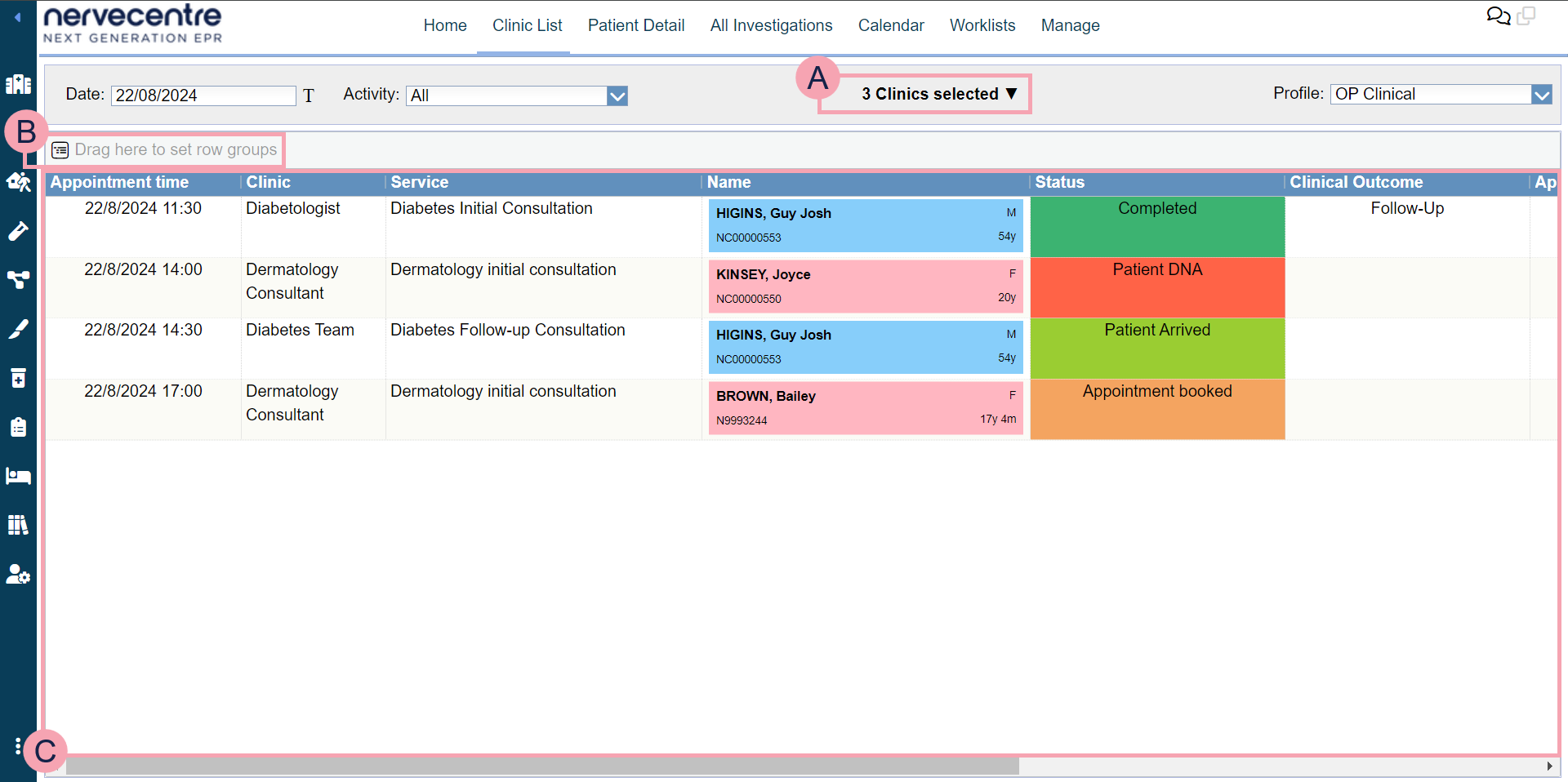
From Outpatients > Clinic List, you can view a list of all patients with an appointment at a clinic on a specific day. To view a clinic list, select a clinic, then select a clinical note profile.
|
Date |
Select the date you want to view. Select to view appointments for today. |
|
Activity |
Select to choose an activity. This allows you to view patients with this activity as part of their appointment. For example, you have the activities 'Arrive 30 minutes early' and 'Blood test'. When you select 'Arrive 30 minutes early', you view all the patients that need to arrive 30 minutes before their appointment. |
|
|
Shows the name of the selected clinic or the number of clinics selected. Select to choose a clinic. You can select multiple clinics. |
|
Profile |
Select to choose a clinical note profile . The clinical note profile changes the columns and information shown. |
|
|
Drag column headings here to group rows by that heading. Select to stop grouping by that heading. |
|
|
Shows all the appointments in the clinics on the selected date. Double-click a patient's name to view their patient record. Read more about viewing a patient record You can update some clinical notes from the clinic list. Double-click in any column containing a clinical note to update the clinical note. For example, double-click in the column Algy to update the clinical note 'Allergies'. |


 Patient Detail
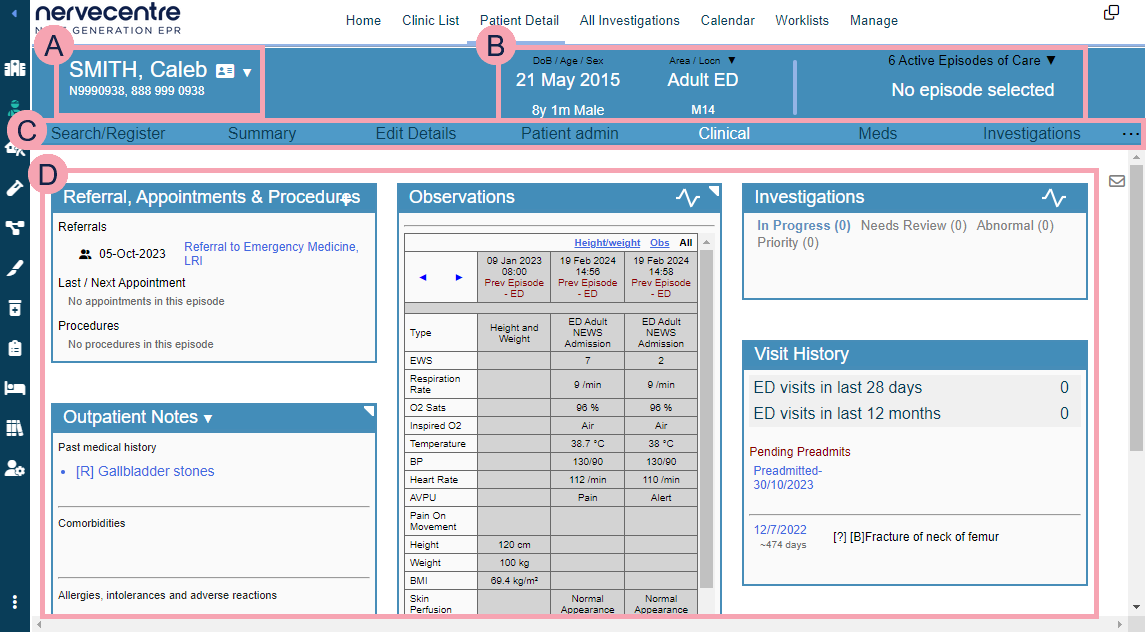
From Outpatients > Patient Detail, search for a patient to view their details.
Read more about searching for a patient
|
|
Shows the patient's name and the patient's identifier numbers A number that identifies the patient. For example, a hospital number, NHS number, or local patient identifier.. Mouseover to see the patient's address, and their GP's address. Select the patient's name to search for another patient. |
|
|
DoB / Age / Sex shows a patient's date of birth, age, and sex.
If the patient is an inpatient or ED patient, select ▼ to transfer the patient. Select Episodes of Care to select an episode of care. This list only shows active episodes of care. The name of the consultant for that episode, and the specialty, appears under Episodes of Care. |
|
|
Navigate between the clinical areas of Patient Detail. Select to see more areas. The areas available to you depend on your organisation. |
|
|
Shows detailed information about the patient. The information shown depends on the area you select. By default, Clinical is shown. Clinical shows you summaries of patient information such as observations, clinical notes, and investigations. |
All Investigations
From Outpatients > All Investigations, you can search for and view information about investigations for patients in a clinic, or other patients who meet your search criteria.
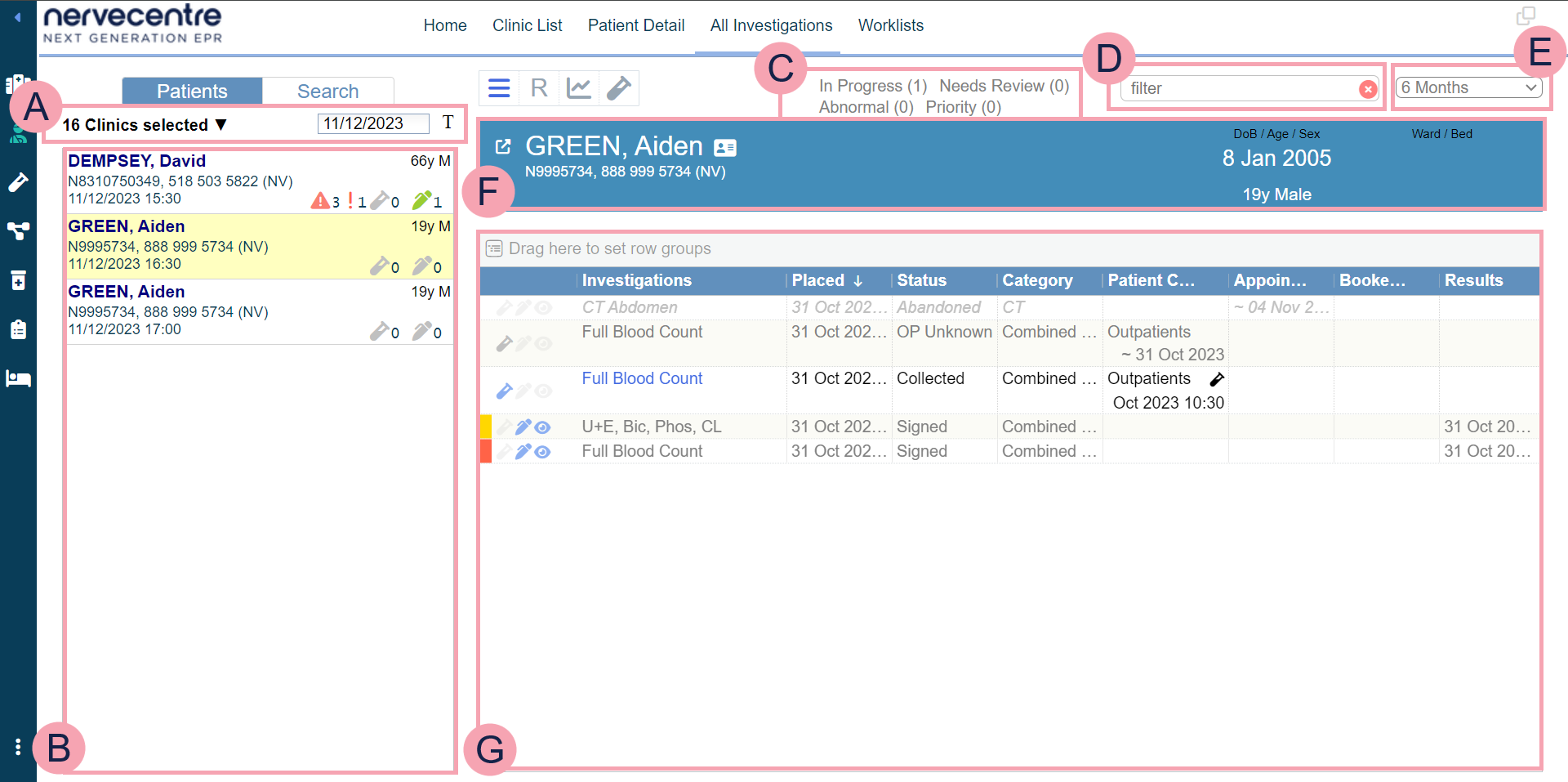
| Patients | Select this to view a list of patients in the selected clinic on the select date. | ||||||||
| Search | Select this to search investigations by criteria. | ||||||||
| |
Select to view orders for the selected patient. |
||||||||
| R |
Select to view results for the selected patient. |
||||||||
| |
Select to view results for the selected patient on graphs. |
||||||||
|
|
Select to record sample collections for the selected patient. |
||||||||
|
|
Select to select a clinic. You can select multiple clinics. Select the date you want to view. Select to view appointments for today.
|
||||||||
|
|
When Patients is selected, this shows a list of patients from the selected clinic. When Search is selected, this shows search criteria. |
||||||||
|
|
Select options to filter the information shown. |
||||||||

|
Type to search in all columns. |
||||||||

|
Select a time period to show. |
||||||||
|
|
Information about the selected patient. Select to view the patient's record. |
||||||||
|
|
Orders and results appear here. Select column headings to filter the list. Icons appear next to the investigations. |
||||||||
|
|
Export the current results to an .xlsx file. |


 Worklists
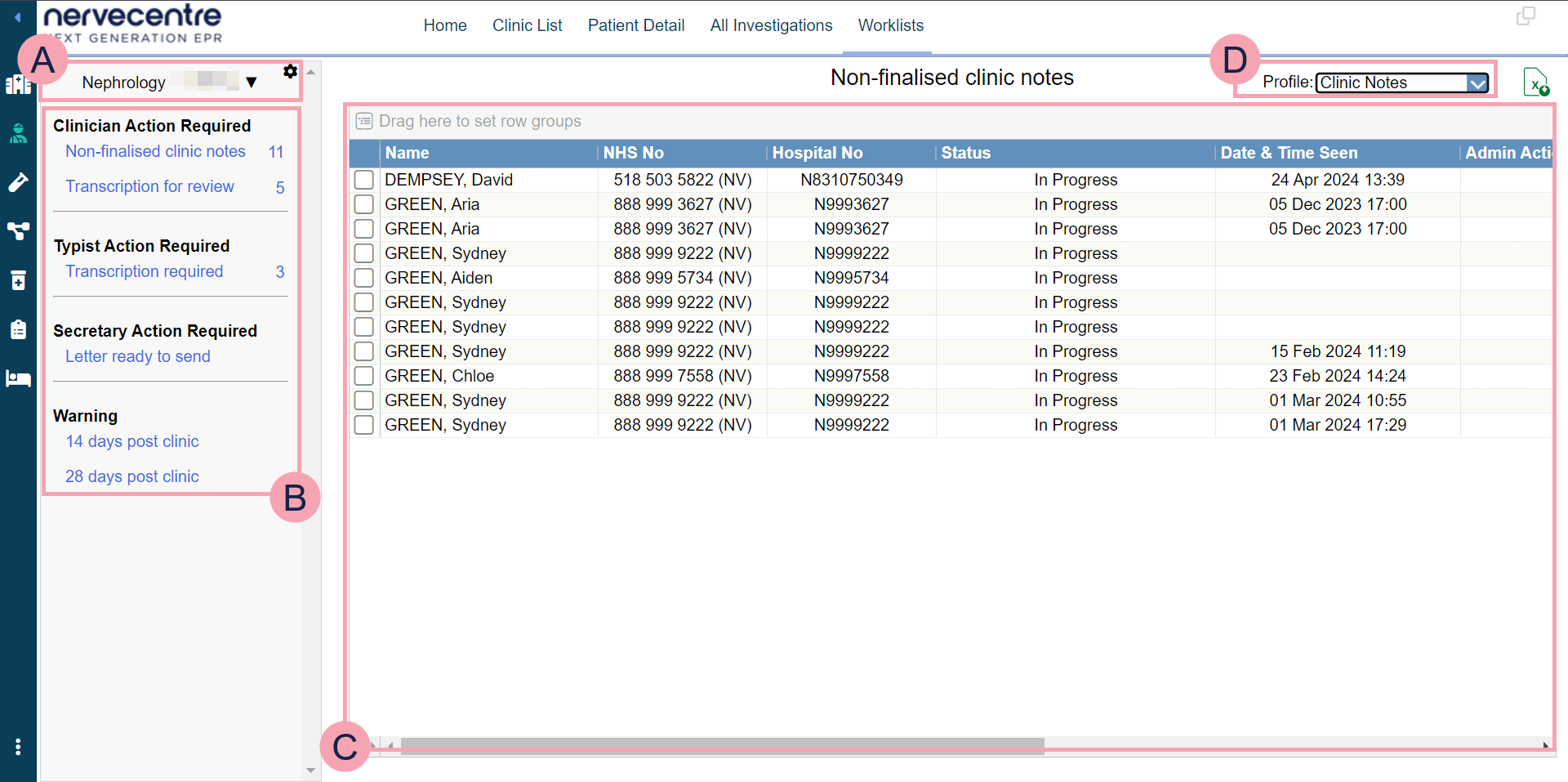
From Worklists, you can view lists of items returned by flow metrics. For example, you might have a worklist that lists all the things you need to do.
|
|
Shows the name of the worklist. Select to choose a worklist to view. Select to:
|
|
|
Shows groups and entries in each group. Next to the name of the entry is the number of items returned by the flow metric. Select the name of an entry to view a list of items. |
|
|
Shows the list of items returned by a flow metric. Double-click on a patient's name to view their patient record. |
|
|
Select a clinical note profile to change the information that displays in the table. |
|
|
Export the current results to an .xlsx file. |
Did you find this article helpful? Yes No
Sorry about that. Our help is a work in progress and we welcome any feedback.
Why wasn't this helpful? Please select one reason:
Thanks for your feedback.
Great!
Thanks for taking the time to give us some feedback.