Nervecentre V8.1 Help for Users
Overview of Inpatients > Patient Detail
You can view patient records from Patient Detail.
 Patient Detail
From Inpatients > Patient Detail, you can view, record, and edit patients' demographic and clinical details.
Patient Detail is the main inpatient area for managing clinical care. When you select Patient Detail you arrive in Clinical.
|
|
Move between patients on the same patient list. |
|
|
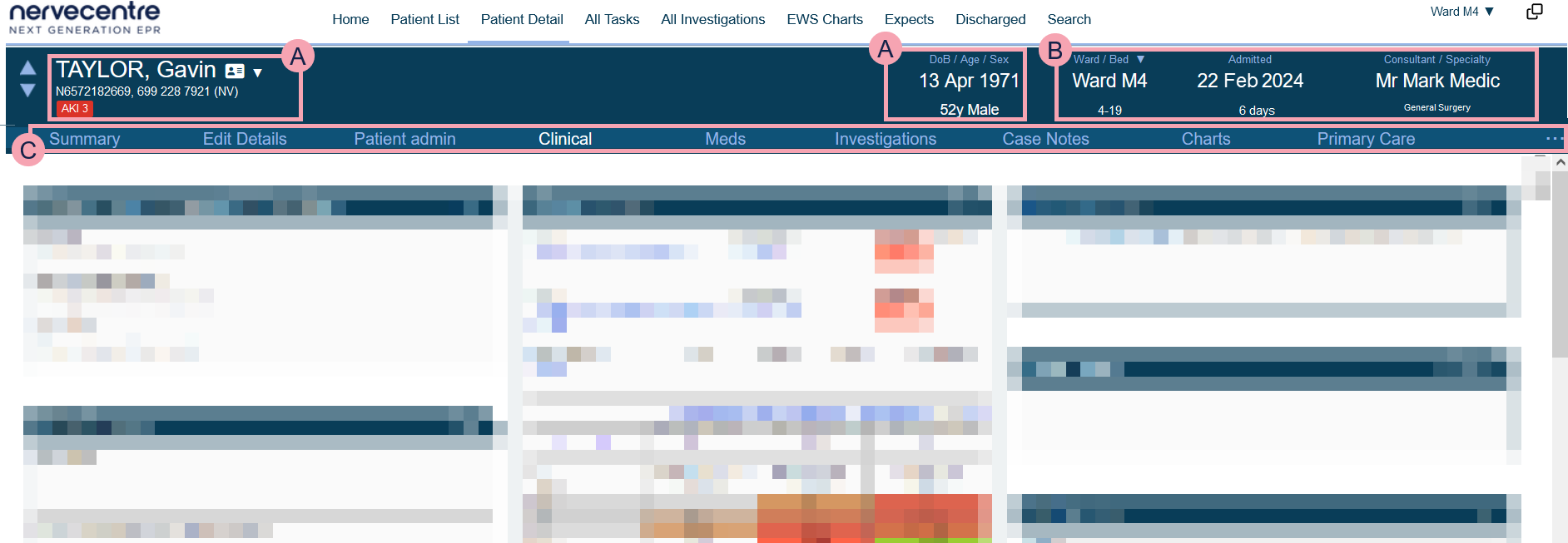
Information about the patient, including their hospital and NHS numbers, their demographic information, and any patient tags. Mouseover to see the patient's address. Select ▼ to search for a patient. |
|
|
Information about the patient's current visit, including their location, time in hospital, and specialty.
Admitted shows the date the patient was admitted and the time since admission.
Consultant / Specialty shows the name of the consultant and the consultant’s specialty. Select ▼ to transfer a patient. Read more about viewing information about the patient's current visit |
|
|
Navigate between the clinical areas of Patient Detail. Select to see more areas. |


 Clinical
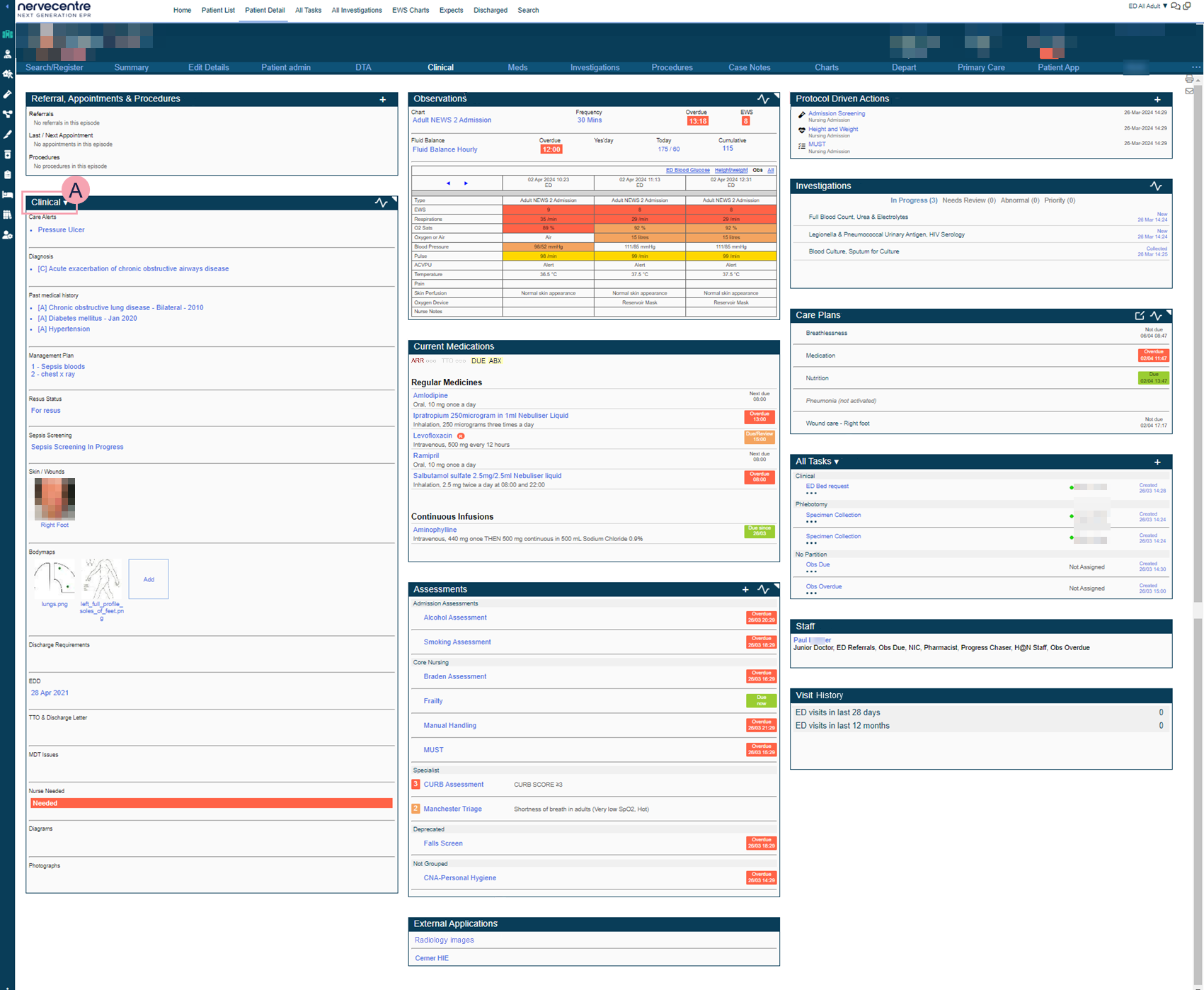
From Clinical, you can access summaries of clinical information. These provide you with a picture of the latest information.
To view more information about the patient, you can:
-
Select parts of the summaries
-
Select options under the patient banner
|
|
Select to print information about the patient. Found in the top right corner. Read more about printing patient information |
|
|
Select to view sent letters. Found in the top right corner. |
|
Referral, Appointments & Procedures |
Shows referrals, upcoming appointments, and procedure in this episode of care. |
|
Observations |
Shows observation and fluid balance charts. Select |
|
Protocol Driven Actions |
Not in this release. |
|
|
Shows clinical notes that are in the selected clinical note profile. You might have access to more than one clinical note profile. Select to choose a clinical note profile. You can use clinical notes to facilitate a ward round or clinical handover. Sometimes clinical notes update information shown elsewhere in Nervecentre. For example, the clinical note for allergies is found here, in forms, in patient list dashboards, and in EPMA. |
|
Investigations |
Shows recent orders and test results. Results that are abnormal might be coloured red to show you a result is outside of a tolerated range. Select a test, order, or result to view more information. Select |
|
Current Medications |
A summary of current medications. Shows all prescribed medications and whether they need to be given or not. Select the medication name to view more information about the prescription. |
|
Care Plans |
Shows all active and inactive care plans. Select Select |
|
Tasks |
Shows tasks that have been raised by Nervecentre or other users. You can filter to show all, open, scheduled or closed tasks for this patient episode. Depending on your permissions, you might be able to accept, assign and progress tasks. Select + to raise a task. |
|
Assessments |
A list of assessments. Shows their status and outcome. Select + to add a new assessment. Select to repeat an assessment or to countersign the assessment. Select |
|
Staff |
Shows all staff logged into Nervecentre on their mobile, with this patient active on their patient list. Any permanent and elective roles are shown. For example, you might use this to see who is logged in as a doctor and can review this patient. |
|
Visit History |
A summary of previous visits. Shows you information about the location, diagnosis, consultant, speciality and dates of the visit. Select the date of a visit. Depending on your permissions, you might be able to view a summary of clinical information for that visit, and edit it. |
|
External Applications |
Select the name of an external system to access it. Depending on your organisation, these might launch in Nervecentre, take you to the patient in context in the named system, or take you to a log in page. |
 to view graphical trends of observations and fluid balance.
 to view, add, and edit care plans, and to record compliance.Meds
When you first select Meds from Patient Detail, you see the MAR Medicines Administration Record. Also known as drug chart. A list of all medication prescribed and administered (given)..
|
|
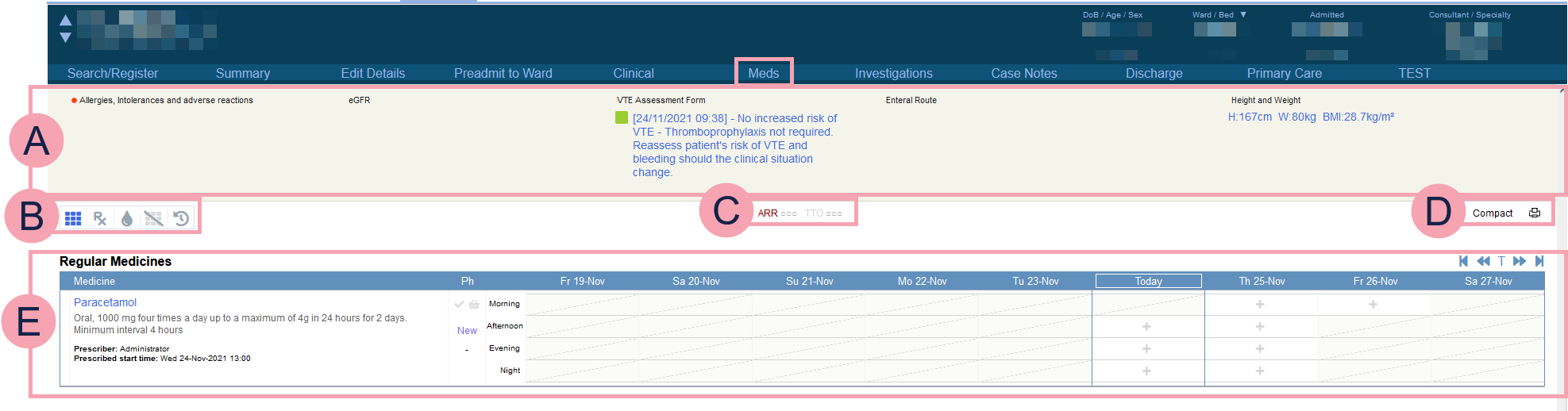
The top banner appears at the top of all pages within Meds. Select fields to enter information. Mandatory fields show . You must complete mandatory fields or override mandatory fields with a reason before you can prescribe any medications. Overriding is fully audited. Only override mandatory fields in an emergency. |
||||||||||||||||
|
|
|
||||||||||||||||
|
|
Select an option to filter the MAR. ARR: view arrived on medications. TTO: view to take out medications. : view due, overdue, and missed medications and fluids. To clear the filter view, select . |
||||||||||||||||
|
|
Compact and Detailed, toggle between the short view and the full view of the MAR. Select |
||||||||||||||||
|
|
The MAR. Use the transport controls to view previous or future days, or select T to centre the view on today. |


 to print the MAR.
 Investigations
To open Investigations, select Inpatients > Patient List > double-click on a patient's name > Patient Detail > Investigations.
|
|
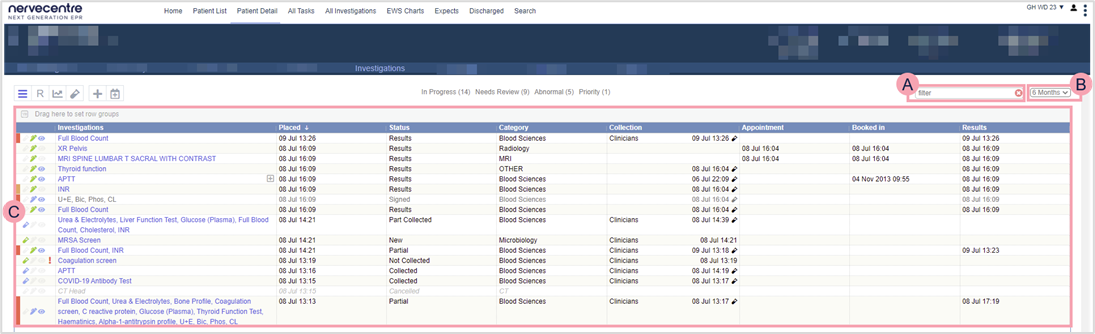
Select to view a summary of orders. |
|
R |
Select R to view results. |
|
|
Select to review investigation trends on a graph. |
|
|
Select to collect samples. |
|
|
Select to add a new order. |
|
|
Select to request an outpatient order. |
|
|
Start typing to filter the list. |
|
|
Filter the list by time period or current episode. To view orders and results in the current episode, the orders and results must contain a valid visit identifier, a PV1-19, known to Nervecentre. |
|
|
View a summary of information. The information you see depends on the area you are in, for example, a summary of orders, or a summary of results. |
Case Notes
From Case Notes, you can view entries in a patient's case notes, and view information in forms and letters.
Forms can contain a range of information, including clinical notes, observations, assessments, blood results, and appointments. You can add information to forms during the patient's journey. You can use forms for clerking, ward rounds, or to record a discussion with a patient or relative.
Nervecentre can generate letters using the information in forms.
Read more about types of entry in a patient's case notes
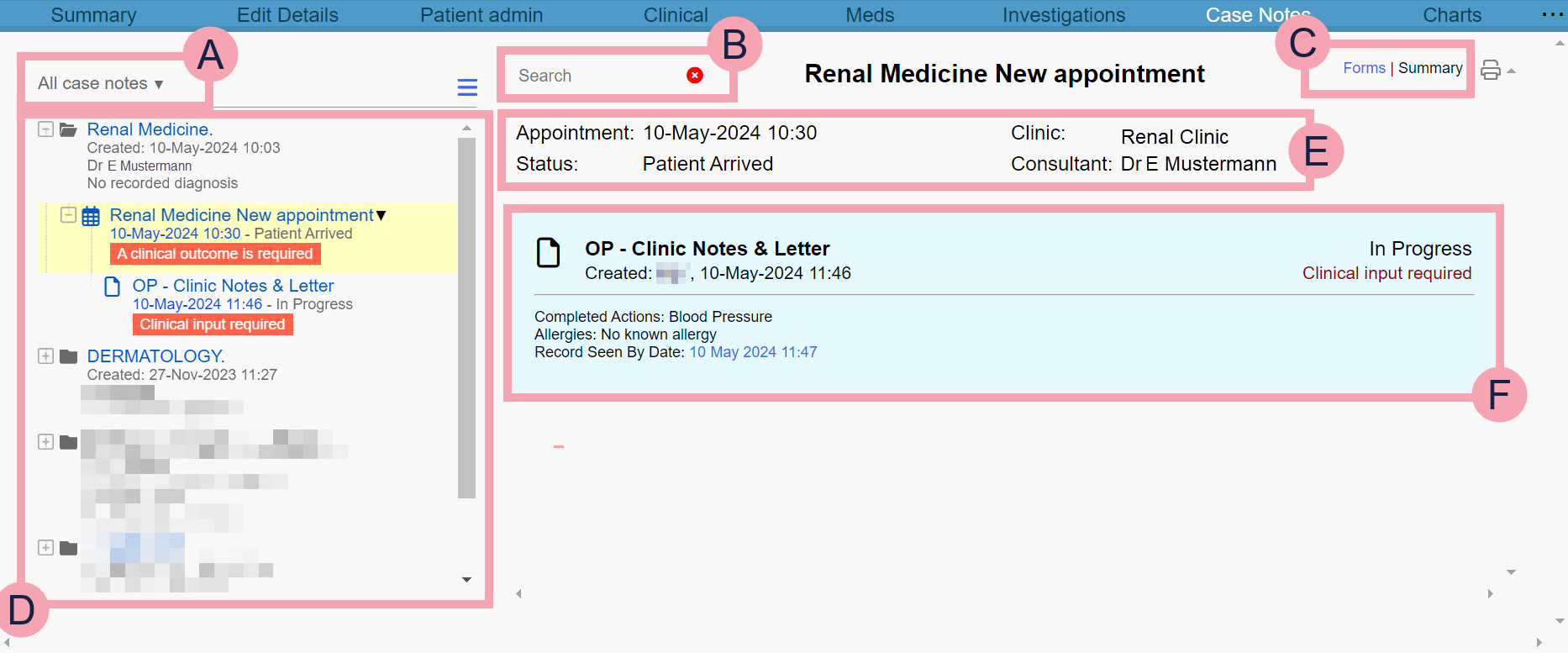
|
|
The current case notes profile. The case notes profile filters the entries shown. Select to choose a case notes profile. |
|
|
Select to view summaries of all entries associated with your current case notes profile. If you select an entry, then select , you can view summaries of all entries under that specific entry. |
|
|
Type to search for a keyword entered on a form. All forms that contain your search term are shown. |
|
|
You can choose how you view forms.
|
|
|
Select to print all forms associated with a specific episode, visit, case, or appointment. Printed forms only show information that has been populated on the form. Incomplete fields are not shown on the printout. |
|
|
A list of entries within a patient's case notes. These entries might be episodes, visits, appointments, cases, or interventions. The layout of these entries depends on the case notes profile. Select an entry to view a list of related on the right. Select an intervention to view the associated form on the right. |
|
|
Information about the selected entry. |
|
|
A summary of the intervention, or form. This shows:
The colour of the summary depends on the form's status.
|
 Primary Care
From Primary Care, you can view primary care information shared through GP Connect. For example, prescribed mediations and allergies.
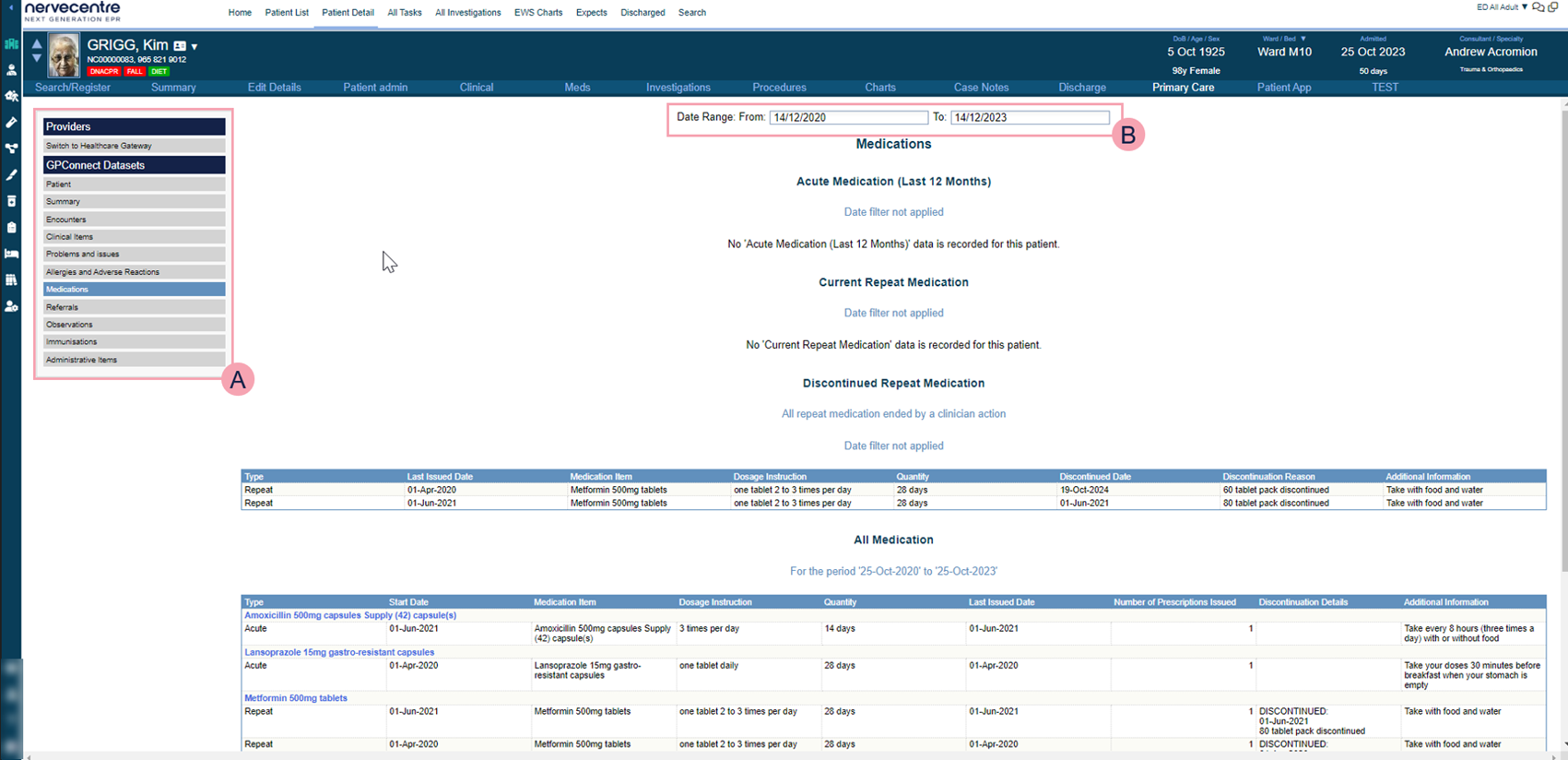
|
|
Select a relevant section to see more information. |
|
|
Choose a date range to filter the available information. |
Did you find this article helpful? Yes No
Sorry about that. Our help is a work in progress and we welcome any feedback.
Why wasn't this helpful? Please select one reason:
Thanks for your feedback.
Great!
Thanks for taking the time to give us some feedback.